Showing posts with label tips n trix. Show all posts

Monday, July 30, 2012

Know who Used Your Pc In Your Absence, simple...


Has someone been snooping around your PC without your knowledge. If your computer contains some confidential or private data. A password is a good option. However, 
if someone has been granted access to your PC or you don’t have a password, 
you might need to see if someone accessed your PC. In that case, you can simply 
keep a check on the use of computer in your absence. Here are the steps to follow:

Step 1: Type “eventvwr.msc” in “Run” under “Start’


Step2: Now, on the left side, you will see “system”. Click on it.


Step3: Now just search for the date and time when your computer according to you 
should be off.


Step4: Now click two times on the event that has occurred during the off time and all 
the details will be displayed.

Thursday, July 26, 2012

Hack remote computer using IP Address


  1. Confirm the website or a computer you want to hack.
  2. Find or trace their IP address.
  3. Make sure that IP address is online
  4. Scan for open ports
  5. Check for venerable ports
  6. access through the port
  7. Brute-force username and password
Now let me describe in brief in merely basic steps that a child can understand it.
First, getting the IP address of victim.
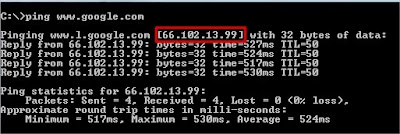
To get the IP address of the victim website, ping for it in command prompt.
For example,
ping www.google.com
will fetch the IP address of Google.com
a How to hack remote computer using IP Address
This is how we can get the IP address of the victims website.
How about your friend’s PC? You can’t do www.yourfirend’sname.com, can you? Finding your friend’s IP address is little tough job, and tougher it is if he has dynamic IP address that keeps changing.
One of the widely used method to detect IP address of your friend is by chatting with him.
 
If u know the ip address? Is it online? To know the online status just ping the IP address, if it is online it will reply.
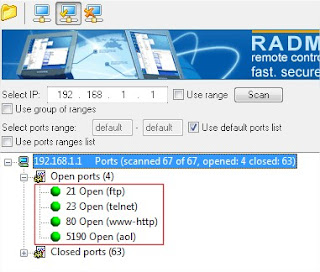
If the IP address is online, scan for the open ports. Open ports are like closed door without locks, you can go inside and outside easily.
Use Advanced Port Scanner to scan all open and venerable ports.
mollel pixels
Now you’ve IP address and open port address of the victim, you can now use telnet to try to access them. Make sure that you’ve telnet enabled in your computer or install it from Control panel > Add remove programs > add windows components.
Now open command prompt and use telnet command to access to the IP address. Use following syntax for connection.
telnet [IP address] [Port]
c How to hack remote computer using IP Address
You’ll be asked to input login information.
d How to hack remote computer using IP Address
If you can guess the informations easily then it’s OK. Or you can use some brute-forcing tools like this one.
In this way you’ll able to hack remove computer using only IP address

Wednesday, July 25, 2012

How to Install Windows 7, Vista and XP from USB


If you want to make your usb pendrive multiboot bootable which can install windows 7, windows vista, windows XP and other boot CD simultaneously without any coding or programming, just follow following steps. You can use .iso file of Windows xp, Windows 7 or Windows Vista too!


These are very easy steps which doesn’t require any advanced level knowledge.


1. First of all just format your pendrive using normal format tool. 


2. Download WinSetupFromUSB-1-0-beta-7 from the following link 


Download

3. Open and run WinSetupFromUSB_1-0-beta-7.exe


After running it you will see screen like below


4. As shown in above image you can see your USB pen drive detected.

After that give path of your windows 7 cd, windows XP cd and other iso file like shown in image below.

You can mount your iso file of windows xp/7/vista in any virtual drive and then use it too.


Now click on ‘GO’.

You can see the process going on. This process will take a few minutes.

After completing the process you can see the message like below.


Click on ‘OK’

That’s IT!!

You are done.

You can now install windows 7 or XP or VISTA from USB port.

Tuesday, July 24, 2012

Easy Steps To Hack Unlimited Time In Internet Cafe's


Steps:

1. Create a new text document.


2. Then type CMD in it.


3. And then save it as softek.bat
NOTE: (Make sure the file does not end wit .txt, but with .bat)

4. Go to the location were you saved the .bat file and run it. If you've done this correctly, the Command Prompt should open.

5. Now that Command Prompt is open, in it type the following: cd\windows (This will change the directory to Windows)

6. Then type in: regedit
(This will get you to the registry editor guide)

7. Now navigate to:
HKEY_CURRENT_USER>Appevents>software>classes>microsoft>windows>current version>internet settings>policies>system

8. Then on the right panel where it says Disable Task manager, right click on it, and scroll down to modify, and than change the value of it to "0".

9. And then open Windows Task Manager
(CTRL+ALT+DELETE) (CTRL+SHIFT+ESCAPE !win 7)

10. Now disable the Internet Cafe's timer.

>>>That's it, now enjoy unlimited surfing BUT when they get you, I don't know you!

Friday, July 20, 2012

IDM SERIAL, PROBLEM SOLVED


Ever had a problem in your IDM because of serials???


People are suffering from the ERROR called
IDM IS REGISTERED WITH FAKE SERIAL KEY AND EXISTING

Today I will tell you how to solve this problem, by a small reg file.

Here is the one small coded Reg file...

Just you have to run this...

Thats it..
It is not REG file.. It UnReg file.. which delete all the registered key of Internet Download Manager from your Windows.

Itsnt that cool..

Just follow these simple steps....

 Un-install IDM and the disconnect the Internet and then follow these
  1.  Download the file from the below link and save it to your desktop.
  2.  Now simply double click on this File
  3.  If you are using win7 then click on "OK" or If you are using Win XP then click on "RUN".

 It will show the msg like this...

Now you again Install the Latest version Of IDM
(Dont worry if that msg comes again)

After Install close the program and close it from task bar also.
Now run the patch file and Patch the IDM.exe file

Just this only.. Now your IDM is fully Registerd..

Now enjoy....
Download the UnReg file from Here

Thursday, July 12, 2012

Some Important Secret Codes Of China Phones


Check this out if you are 1 of Chinese phones' FAN

default user code: 1122, 3344, 1234, 5678
Engineer mode: *#110*01#
Factory mode: *#987#
Enable COM port: *#110*01# -> Device -> Set UART -> PS Config -> UART1/115200
Restore factory settings: *#987*99#
LCD contrast: *#369#
software version: *#800#
software version: *#900#
set default language: *#0000# Send
set English language: *#0044# Send
set English language (new firmware): *#001# Send

*#0086#, *#0886# set to China
*#0084#, *#0966# set to Vietnamese
*#77218114#
*#19992006#
*#881188#
#*94267357#
*#0084#call 

*#3646633# Sigmatel Engeeniring mode. 

CECT P168/P168+ SCIPHONE I68/I68+ & I9/I9+ Codes 

--------------------------------------------------------------------------

Engineering Mode: *#3646633#
Factory Mode: *#66#
Display IMEI: *#06#

Wednesday, July 11, 2012

MAKE YOUR WINDOWS LOOK LIKE MAC


Download the lion transformation pac here and give your p.c or laptop a mac os lion look. This ids for 32 bit users. I also have one for 64 bit users.
Untick 1. Media-Nagging sounds
2.Desk Drive
3.X-lefty
4.Left sider

Anything else that u deem unwanted.
You can install it and uninstall any number of times that you want.

Make it look just like this...


Download it right here:->>>
http://www.mediafire.com/download.php?11cqqfdgrrdxssf

Keyboard Shorcuts (Microsoft Windows)

 
1. CTRL+C (Copy)
2. CTRL+X (Cut)
3. CTRL+V (Paste)
4. CTRL+Z (Undo)
5. DELETE (Delete)
6. SHIFT+DELETE (Delete the selected item permanently without placing the item in the Recycle Bin)
7. CTRL while dragging an item (Copy the selected item)
8. CTRL+SHIFT while dragging an item (Create a shortcut to the selected item)
9. F2 key (Rename the selected item)
10. CTRL+RIGHT ARROW (Move the insertion point to the beginning of the next word)
11. CTRL+LEFT ARROW (Move the insertion point to the beginning of the previous word)
12. CTRL+DOWN ARROW (Move the insertion point to the beginning of the next paragraph)
13. CTRL+UP ARROW (Move the insertion point to the beginning of the previous paragraph)
14. CTRL+SHIFT with any of the arrow keys (Highlight a block of text)
SHIFT with any of the arrow keys (Select more than one item in a window or on the desktop, or select text in a document)
15. CTRL+A (Select all)
16. F3 key (Search for a file or a folder)
17. ALT+ENTER (View the properties for the selected item)
18. ALT+F4 (Close the active item, or quit the active program)
19. ALT+ENTER (Display the properties of the selected object)
20. ALT+SPACEBAR (Open the shortcut menu for the active window)
21. CTRL+F4 (Close the active document in programs that enable you to have multiple documents opensimultaneously)
22. ALT+TAB (Switch between the open items)
23. ALT+ESC (Cycle through items in the order that they had been opened)
24. F6 key (Cycle through the screen elements in a window or on the desktop)
25. F4 key (Display the Address bar list in My Computer or Windows Explorer)
26. SHIFT+F10 (Display the shortcut menu for the selected item)
27. ALT+SPACEBAR (Display the System menu for the active window)
28. CTRL+ESC (Display the Start menu)
29. ALT+Underlined letter in a menu name (Display the corresponding menu) Underlined letter in a command name on an open menu (Perform the corresponding command)
30. F10 key (Activate the menu bar in the active program)
31. RIGHT ARROW (Open the next menu to the right, or open a submenu)
32. LEFT ARROW (Open the next menu to the left, or close a submenu)
33. F5 key (Update the active window)
34. BACKSPACE (View the folder onelevel up in My Computer or Windows Explorer)
35. ESC (Cancel the current task)
36. SHIFT when you insert a CD-ROMinto the CD-ROM drive (Prevent the CD-ROM from automatically playing)
Dialog Box - Keyboard Shortcuts
1. CTRL+TAB (Move forward through the tabs)
2. CTRL+SHIFT+TAB (Move backward through the tabs)
3. TAB (Move forward through the options)
4. SHIFT+TAB (Move backward through the options)
5. ALT+Underlined letter (Perform the corresponding command or select the corresponding option)
6. ENTER (Perform the command for the active option or button)
7. SPACEBAR (Select or clear the check box if the active option is a check box)
8. Arrow keys (Select a button if the active option is a group of option buttons)
9. F1 key (Display Help)
10. F4 key (Display the items in the active list)
11. BACKSPACE (Open a folder one level up if a folder is selected in the Save As or Open dialog box)

Microsoft Natural Keyboard Shortcuts
1. Windows Logo (Display or hide the Start menu)
2. Windows Logo+BREAK (Display the System Properties dialog box)
3. Windows Logo+D (Display the desktop)
4. Windows Logo+M (Minimize all of the windows)
5. Windows Logo+SHIFT+M (Restorethe minimized windows)
6. Windows Logo+E (Open My Computer)
7. Windows Logo+F (Search for a file or a folder)
8. CTRL+Windows Logo+F (Search for computers)
9. Windows Logo+F1 (Display Windows Help)
10. Windows Logo+ L (Lock the keyboard)
11. Windows Logo+R (Open the Run dialog box)
12. Windows Logo+U (Open Utility Manager)
13. Accessibility Keyboard Shortcuts
14. Right SHIFT for eight seconds (Switch FilterKeys either on or off)
15. Left ALT+left SHIFT+PRINT SCREEN (Switch High Contrast either on or off)
16. Left ALT+left SHIFT+NUM LOCK (Switch the MouseKeys either on or off)
17. SHIFT five times (Switch the StickyKeys either on or off)
18. NUM LOCK for five seconds (Switch the ToggleKeys either on or off)
19. Windows Logo +U (Open Utility Manager)
20. Windows Explorer Keyboard Shortcuts
21. END (Display the bottom of the active window)
22. HOME (Display the top of the active window)
23. NUM LOCK+Asterisk sign (*) (Display all of the subfolders that are under the selected folder)
24. NUM LOCK+Plus sign (+) (Display the contents of the selected folder)
25. NUM LOCK+Minus sign (-) (Collapse the selected folder)
26. LEFT ARROW (Collapse the current selection if it is expanded, or select the parent folder)
27. RIGHT ARROW (Display the current selection if it is collapsed, or select the first subfolder)
Shortcut Keys for Character Map
After you double-click a character on the grid of characters, you can move through the grid by using the keyboard shortcuts:
1. RIGHT ARROW (Move to the rightor to the beginning of the next line)
2. LEFT ARROW (Move to the left orto the end of the previous line)
3. UP ARROW (Move up one row)
4. DOWN ARROW (Move down one row)
5. PAGE UP (Move up one screen at a time)
6. PAGE DOWN (Move down one screen at a time)
7. HOME (Move to the beginning of the line)
8. END (Move to the end of the line)
9. CTRL+HOME (Move to the first character)
10. CTRL+END (Move to the last character)
11. SPACEBAR (Switch between Enlarged and Normal mode when a character is selected)
Microsoft Management Console (MMC)
Main Window Keyboard Shortcuts
1. CTRL+O (Open a saved console)
2. CTRL+N (Open a new console)
3. CTRL+S (Save the open console)
4. CTRL+M (Add or remove a console item)
5. CTRL+W (Open a new window)
6. F5 key (Update the content of all console windows)
7. ALT+SPACEBAR (Display the MMC window menu)
8. ALT+F4 (Close the console)
9. ALT+A (Display the Action menu)
10. ALT+V (Display the View menu)
11. ALT+F (Display the File menu)
12. ALT+O (Display the Favorites menu)

MMC Console Window Keyboard Shortcuts
1. CTRL+P (Print the current page or active pane)
2. ALT+Minus sign (-) (Display the window menu for the active console window)
3. SHIFT+F10 (Display the Action shortcut menu for the selected item)
4. F1 key (Open the Help topic, if any, for the selected item)
5. F5 key (Update the content of all console windows)
6. CTRL+F10 (Maximize the active console window)
7. CTRL+F5 (Restore the active console window)
8. ALT+ENTER (Display the Properties dialog box, if any, for theselected item)
9. F2 key (Rename the selected item)
10. CTRL+F4 (Close the active console window. When a console has only one console window, this shortcut closes the console)
Remote Desktop Connection Navigation
1. CTRL+ALT+END (Open the Microsoft Windows NT Security dialog box)
2. ALT+PAGE UP (Switch between programs from left to right)
3. ALT+PAGE DOWN (Switch between programs from right to left)
4. ALT+INSERT (Cycle through the programs in most recently used order)
5. ALT+HOME (Display the Start menu)
6. CTRL+ALT+BREAK (Switch the client computer between a window and a full screen)
7. ALT+DELETE (Display the Windows menu)
8. CTRL+ALT+Minus sign (-) (Place a snapshot of the active window in the client on the Terminal server clipboard and provide the same functionality as pressing PRINT SCREEN on a local computer.)
9. CTRL+ALT+Plus sign (+) (Place asnapshot of the entire client window area on the Terminal server clipboardand provide the same functionality aspressing ALT+PRINT SCREEN on a local computer.)

Microsoft Internet Explorer Keyboard Shortcuts
1. CTRL+B (Open the Organize Favorites dialog box)
2. CTRL+E (Open the Search bar)
3. CTRL+F (Start the Find utility)
4. CTRL+H (Open the History bar)
5. CTRL+I (Open the Favorites bar)
6. CTRL+L (Open the Open dialog box)
7. CTRL+N (Start another instance of the browser with the same Web address)
8. CTRL+O (Open the Open dialog box,the same as CTRL+L)
9. CTRL+P (Open the Print dialog box)
10. CTRL+R (Update the current Web page)
11. CTRL+W (Close the current window) 

Tuesday, June 19, 2012

Mobile Tracking Software


Technology is one of the best thing in all of our life. It made our life better and more interesting. You can now do anything with technology. One of the most important thing in this field is tracking a mobile phone. In movies etc, professional hackers use to track mobile phones with a lot of big devices but, it is just a drama. Tracking a mobile is not that difficult. It is really very easy task.
Before some months, I didn't know how to track down a mobile phone and also I didn't search that on internet because I thought it is too difficult task but, once when I search for it, I did it.
There are a lot of web tools that lets you track down mobile phone of either yours or your friends. If you are using an iOS device, then you will never lose your device because a great application 'Find my iPhone' lets you find your lost iPhone, iPod touch and iPad for free and faster. You can get this application here. Also the latest version of 'Find my iPhone' lets you find you your stolen or lost Mac.

But, if you don't want to use this application on your iOS device or if you want to track your mobile phone or friends mobile phone from another platform then, here is a solution.
Google has provided a facility to users to track their friends locations using Google Latitude. There are many other web tools on internet like NavXS and BuddyWay but, these tools won't let you track mobile phones without any GPS in these devices. To use this tool with your device, your device must have GPS enabled. The best thing in Google Latitude is that it doesn't required a GPS. Google Latitude just requires a mobile phone that can support Google Maps. If your device can use Google Maps and don't have GPS, then Google won't disappoint you. You can still track your friends with this service. Google said that users of Android mobile phones, iOS devices, Blackberry devices, Symbian, and Windows Phone 5.0+ can use Google Latitude easily.


If you have lost your mobile phone in public place and want to check where it is, just open Google Latitude and find it out. Or if you want to check that John is still at office or not then, you can just open Google Latitude and check it. You can trace location of all your friends.
If you are wondering that how Google Latitude will track your friends then, it is easy. First of all, open this application on your device and select all your contacts. Also you can select contacts from GMail. So, you can not only say this application as find my  mobile phone or track a mobile phone but, you can also call it as 'Friends Tracker'.

And if you have lost your own mobile phone then, don't worry. Whenever you use your mobile phone with Google Latitude, it will store everything about your device and once you have lost your mobile phone, just open Google Latitude online and look for your mobile phone fast and easily.
Related Posts Plugin for WordPress, Blogger...